Plinqx Publisher Named Credentials
Available: Base
Overview
Plinqx Publisher uses Salesforce Named Credentials (and related External Credentials) to securely store:
- The base URL for an external system
- The authentication mechanism (for example, Basic Auth, OAuth 2.0, or JWT)
- Optional secret values (for example, API keys) stored encrypted
Once configured, a Named Credential can be referenced from Plinqx Publisher Inbound/Outbound configurations instead of hard-coding URLs and credentials in endpoints.
Prerequisites
Access
You need access to:
- The Plinqx app in Salesforce
- The Publisher tab
- Salesforce Setup (to review/edit the created Named Credential)
Recommended permissions (admin/configurator)
- Permission to create/modify Named Credentials and External Credentials in Salesforce Setup
- Any Plinqx permission sets required to access Publisher -> Named Credentials
Where Named Credentials are used in Publisher
Publisher endpoints can reference a Named Credential. For example, an Outbound endpoint detail includes a NamedCredential value that determines what base URL and authentication will be used when the callout runs.
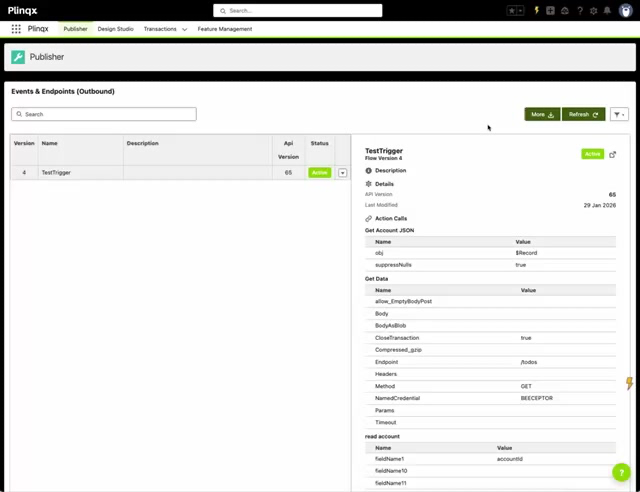
Create a Named Credential from Plinqx Publisher
Open Named Credentials in Publisher
- Open the Plinqx app.
- Navigate to Publisher.
- Open Events and Endpoints (Named Credentials).
Tip: This screen lists the Named Credentials created via the Plinqx Publisher experience.
Start the wizard
- Click New.
Step 1 - Authentication Details
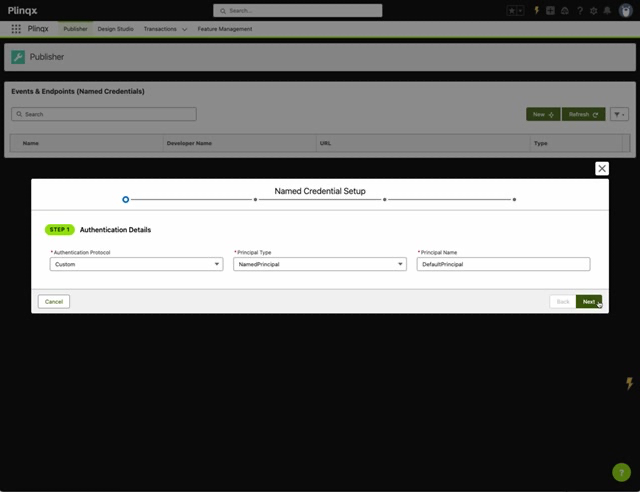
In Named Credential Setup, configure the authentication approach.
Fields shown:
- Authentication Protocol (e.g., Custom, Basic Authentication, OAuth 2.0, JWT, etc.)
- Principal Type
- Principal Name
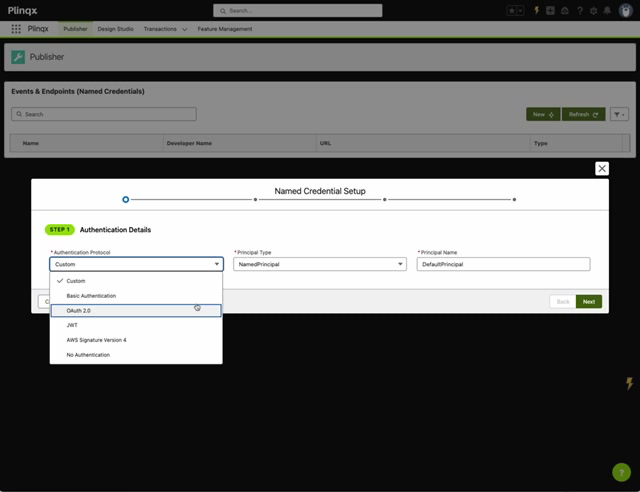
Click Next to continue.
Step 2 - External Credential
Set the External Credential that will be linked to the Named Credential.
Fields shown:
- External Credential Label
- Developer Name
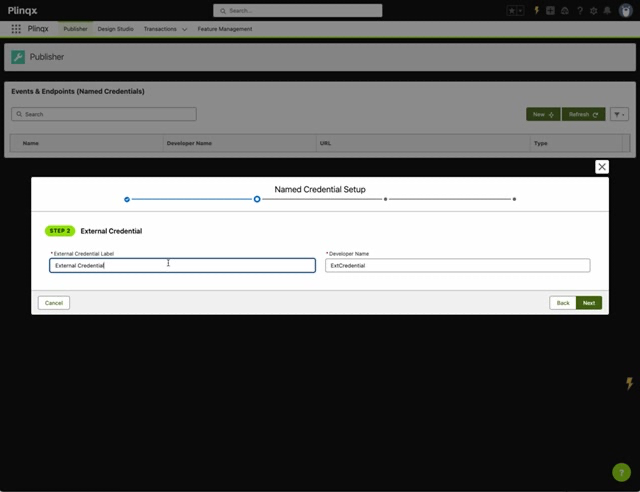
Click Next to continue.
Step 3 - Named Credential
Configure the Named Credential record.
Key fields:
- Named Credential Label
- Developer Name
- Base URL (the root URL for the external system, e.g.,
https://api.example.com)
Common options:
- Generate Authorization Header
- Allow Merge Fields in Header
- Allow Merge Fields in Body
Optional Credential Secret:
- Parameter Name (e.g.,
ApiKey,password) - Secret Value
- Store Encrypted
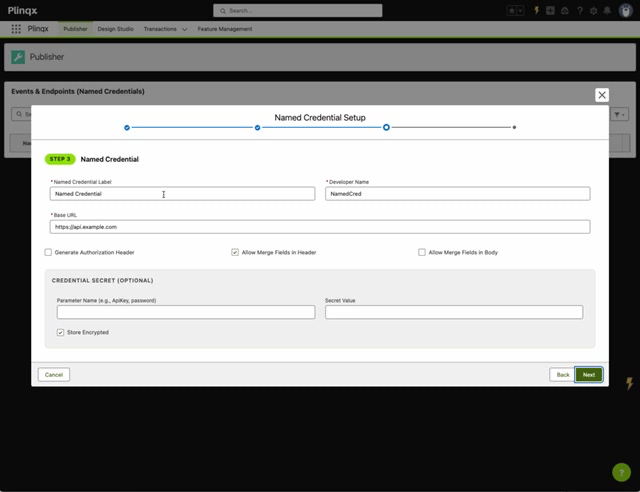
Click Next to continue.
Step 4 - Review and Create
Review the summary (protocol, principal, external credential, named credential, base URL) and click Create.
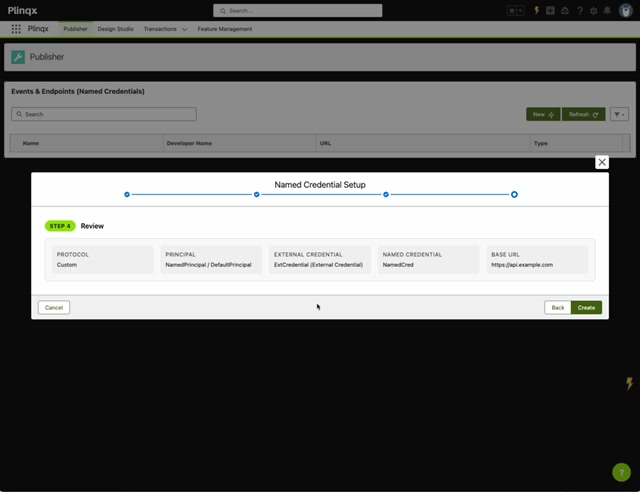
Confirm the record is created
After creation, Publisher shows a success toast and the Named Credential appears in the list.
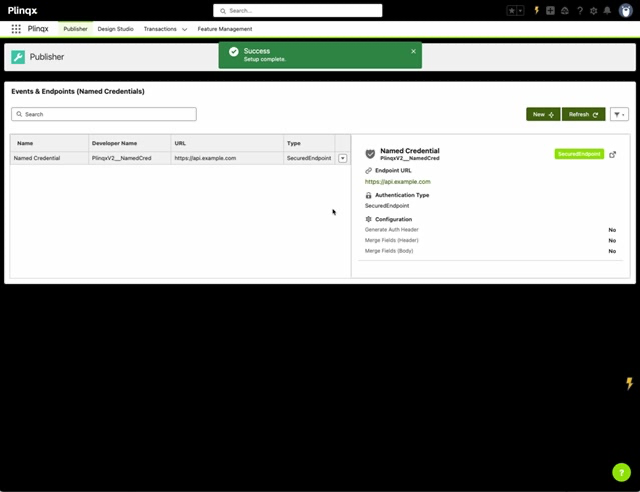
Verify and manage the Named Credential in Salesforce Setup
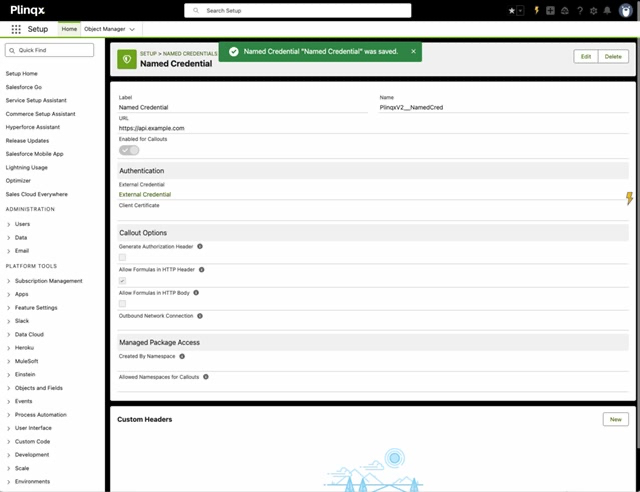
Publisher creates a standard Salesforce Named Credential that you can manage from Setup.
- Open Setup.
- Navigate to Named Credentials (Setup -> Named Credentials).
- Open the Named Credential created by Publisher.
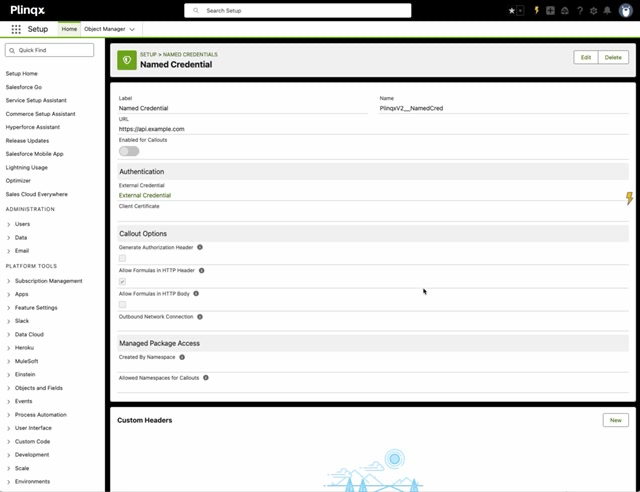
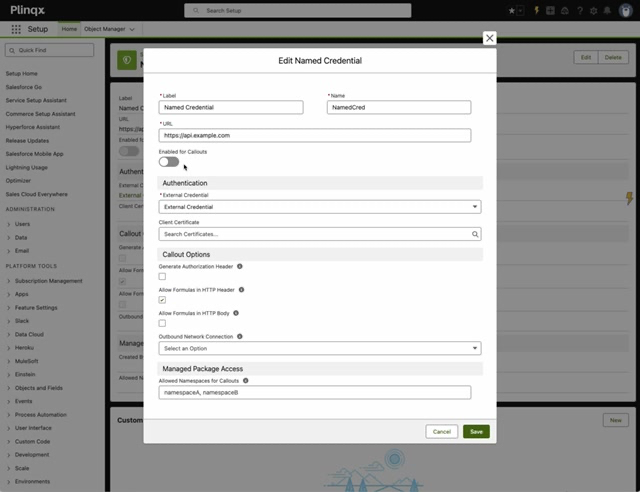
Edit details (if required)
Use Edit to update label, name, URL, authentication linkage, callout options, and managed package access.
After saving, you’ll see a confirmation toast.
Best practices
- Use stable base URLs: create separate Named Credentials per environment (DEV/UAT/PROD).
- Keep secrets out of endpoint definitions: store API keys/passwords in the credential where possible.
- Least privilege: restrict creation/edit access to admins/configurators.
- Consistent naming: adopt a convention, for example:
EXT_<System>_<Env>.
Troubleshooting
The Named Credential doesn’t appear in Publisher
- Click Refresh on the Named Credentials list.
- Confirm you have access to the relevant Plinqx Publisher screen and permission sets.
Callouts fail after configuration
- Confirm the Base URL is correct.
- Confirm authentication protocol and principal settings match the target system.
- Validate any required secrets/headers are stored and referenced correctly.
“Unauthorized” / “401” errors
- Re-check the authentication details in Setup -> Named Credentials.
- If using API key style auth, ensure the key is present in the secret field or in the configured header mechanism.
Need help?
Talk to the Plinqx team about setup, integrations, or licensing.